 Transcripts
Getting started
Transcripts records what you say and writes it down, on your own machine. There is no account to make and no server involved — the app is the whole product.
It comes in two halves that work on their own and better together: a Mac app that lives in the menu bar and can record both sides of a call, and an iPhone and iPad app that records anywhere and hands its recordings to the Mac.
Installing on the Mac
Download the zip, move Transcripts.app to your Applications folder, and open it. It has no window — look for the Transcripts mark (a line of text over a waveform) in the menu bar, at the top right of the screen.
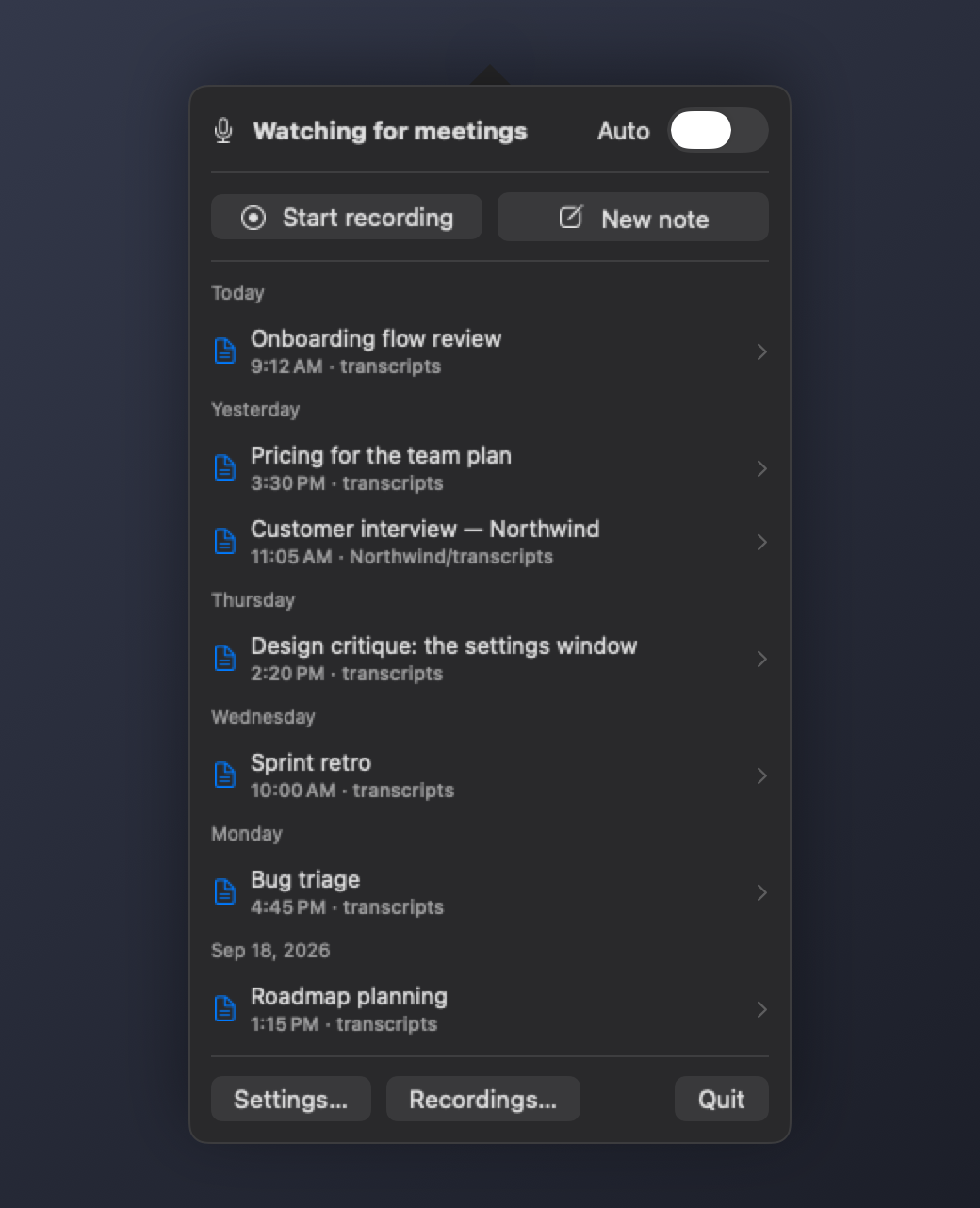
The first time you record, macOS asks for the microphone. The first time it records a call, it asks for Screen Recording, which is how macOS describes capturing the audio of other apps — Transcripts uses it only for the audio, never the picture. Both prompts come from macOS itself, and both are revocable in System Settings ▸ Privacy & Security.
Where recordings go
On first launch Transcripts picks a folder for you:
- iCloud Drive, if you use it —
iCloud Drive/Transcripts. This is the default because it is the one folder your Mac, iPhone and iPad can already all see, with no setup and no third-party account. ~/Documents/Transcripts, if iCloud Drive isn't available.
You can change it any time in Settings ▸ Destinations. Nothing moves when you do — existing recordings stay where they were written.
Your first recording
Click the menu-bar icon and choose Start recording. Speak. Choose Stop & process.
Transcripts then encodes the audio, transcribes it on-device, writes a summary, decides where it belongs, and files it. That takes a few seconds to a few minutes depending on length. When it finishes, the recording appears under Recordings with its transcript and summary.
While recording, the menu-bar icon pulses with the sound coming in. That is deliberate: a still icon cannot tell you the difference between a quiet room and a microphone that isn't working.
Installing on iPhone or iPad
The mobile app is a recorder in its own right — it transcribes live as you speak and keeps its own library. On first run it asks where recordings should go; pick the same iCloud Drive folder your Mac uses and the two halves join up on their own.
See iPhone, iPad and Mac for how the handoff works.
If something goes wrong
Bugs and feature requests go to the public issue tracker. It is worth filing there rather than emailing: you can see what is already known, and whether someone else has hit the same thing.
Transcripts collects nothing about your usage, so a report really is all the information there is — the templates ask for the version and your OS for that reason. Please don't paste transcript contents; nothing about diagnosing a bug needs them.
Next: Installing